How it works
Five minutes of setup, then it just listens
Nothing here requires a server, an account or an IT department. Everything below happens on your own machine.
Install and choose your audio
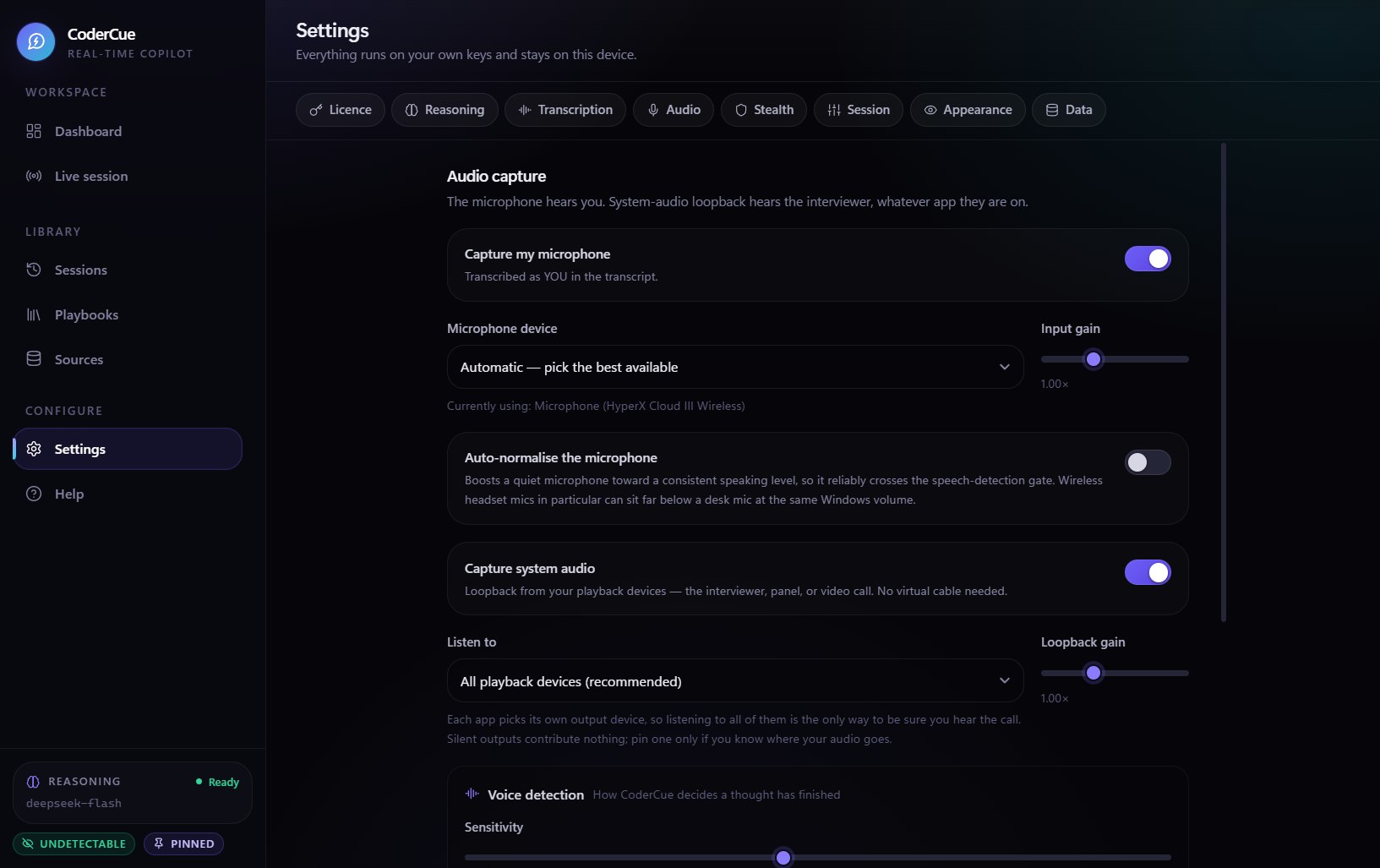
Run the installer and open CoderCue. Settings already lists every microphone and every active playback device Windows can see, with a live meter beside each one.
- Microphone — pick the device you actually speak into. CoderCue scores devices by how they are presented to Windows and de-prioritises monitor and loopback endpoints, which are the usual cause of your own speakers being transcribed as YOU.
- System audio — leave it on and CoderCue captures every active output, not just the Windows default. That is what makes Discord, Zoom and browser audio work when your headset is not the system default.
Speak normally and watch the microphone meter. It should move well clear of the floor while you talk and fall back when you stop. If it barely lifts, see the troubleshooting section below before you start a real session.
Download one speech model
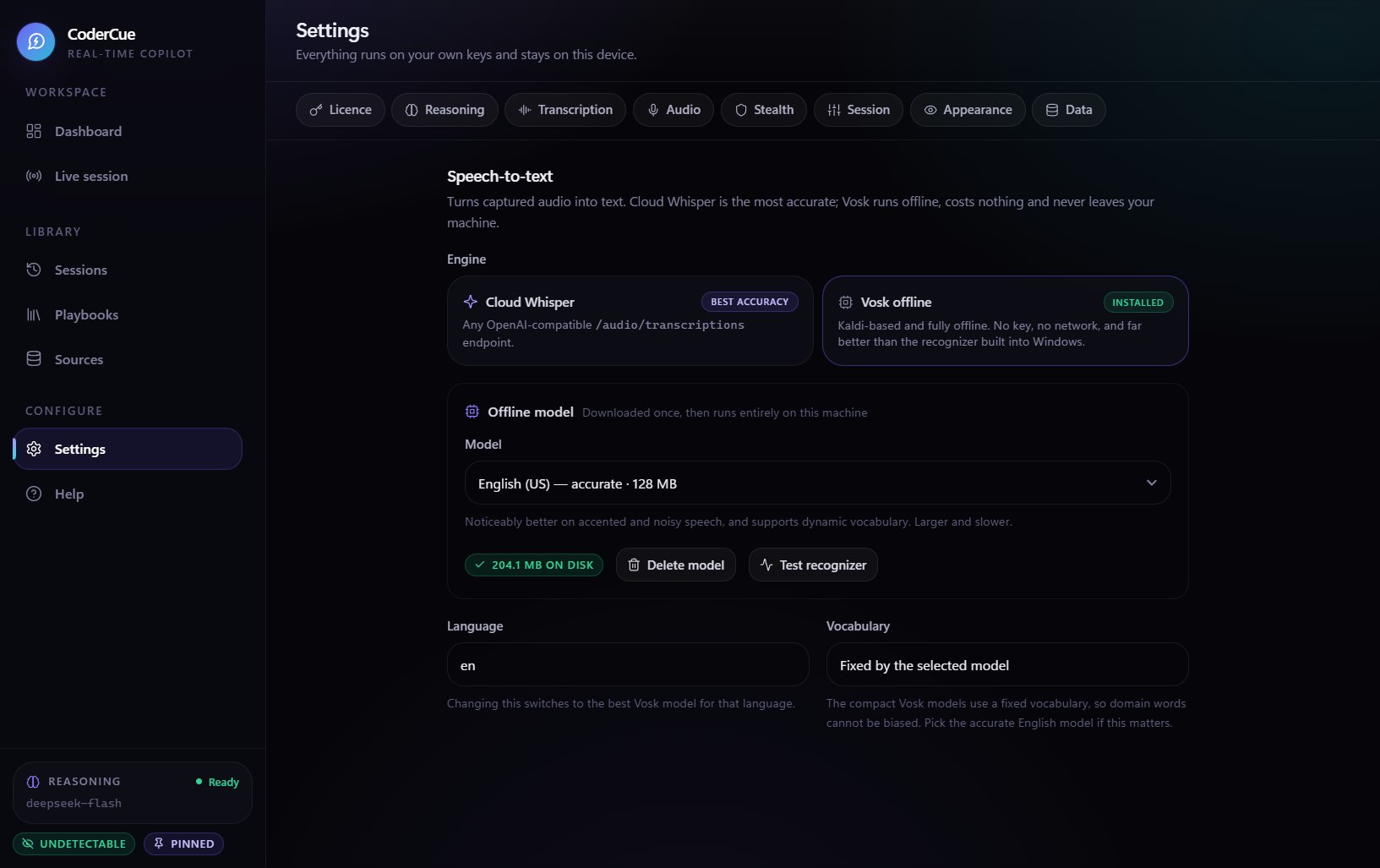
CoderCue ships without a speech model so the download stays small. Pick your language and download it once — after that, transcription runs entirely on your CPU with no internet connection.
| Model | Size | Use it when |
|---|---|---|
| English (US) — compact | 40 MB | Default. Fast, light on battery, comfortably accurate for clear speech. |
| English (US) — accurate | 128 MB | Dense technical vocabulary, accented speech, or when every word matters. |
| 17 further languages | 31-82 MB | Spanish, French, German, Italian, Portuguese, Dutch, Polish, Russian, Ukrainian, Turkish, Hindi, Mandarin, Japanese, Korean, Vietnamese, Persian and Czech. |
Paste your AI provider key
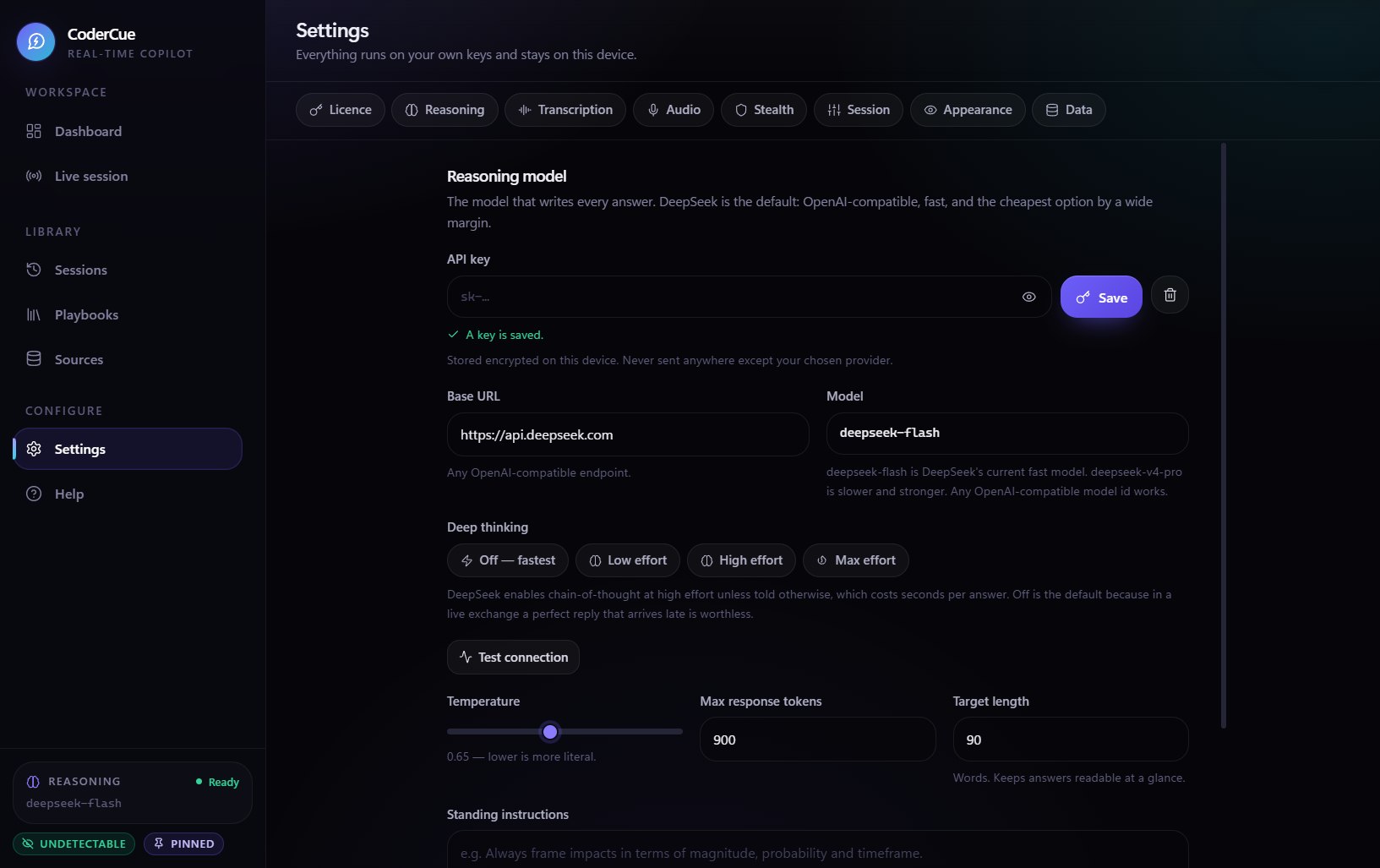
CoderCue is built and tuned for DeepSeek, whose flash model is fast, cheap and unusually good at argumentation. Create a key in your provider's dashboard, paste it into Settings and press Save.
- The key is encrypted with Windows DPAPI and readable only by your Windows account on this machine.
- Any OpenAI-compatible endpoint works — the base URL and model name are both editable.
- You pay your provider directly at cost. A typical session costs a few cents, and CoderCue never marks it up.
Pick a playbook and start the session
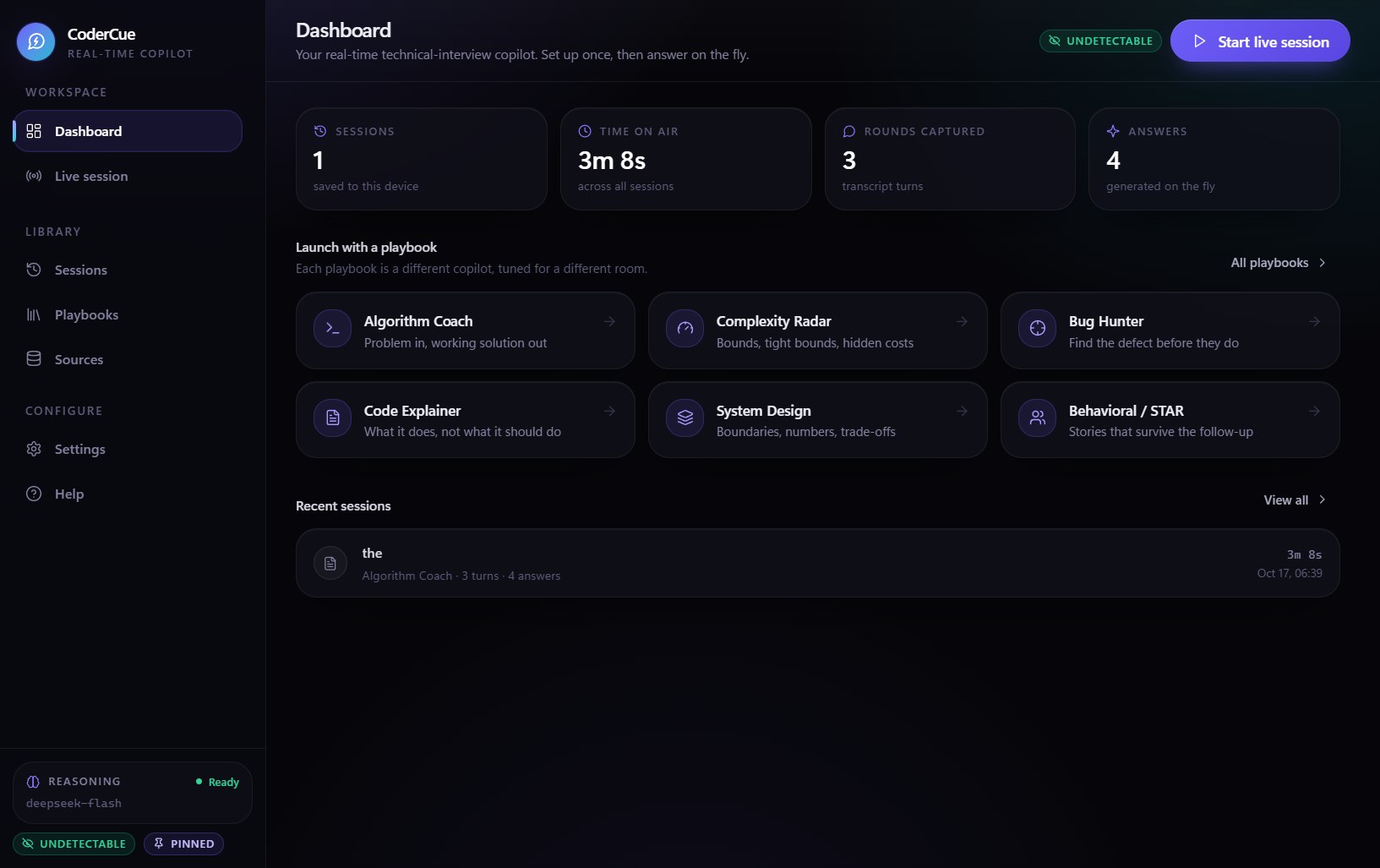
Choose the persona that matches what you are doing — Algorithm Coach for a round, Presentation Copilot for a talk, Meeting Copilot for a call — then press Start. Transcription begins immediately and answers stream in as the other side speaks.
Everything you need mid-session is one click away: switch playbook, ask a follow-up with a quick action, type a question by hand, or clear the working context between rounds without losing your saved history.
Using it live
How to read the copilot without losing your thread
Answers are written to be glanced at, not studied. Every interview playbook uses the same four-part shape so your eye knows where to land.
Two or three words naming the technique — two pointers, BFS, binary search on the answer. This is the part interviewers grade hardest, and the part to say out loud before you type.
The idea in two sentences, including the constraint that makes it correct. Read this to check the copilot understood the problem the same way you did.
A complete function with its signature and return, already in a fenced block. Type it or paste it — there are no ellipses to fill in.
Time and space in O(...) notation, plus the line that sets the bound. The question you will be asked next, already answered.
Do not read it verbatim. The copilot gives you structure and wording; your delivery is what wins the interview. The strongest users glance, absorb the shape, and speak in their own words.
Making it yours
Controls that matter when you are on stage
The session window is designed to sit beside whatever you are already looking at without competing for attention.
- Always on top — keeps the answer visible over a full-screen presentation.
- Adjustable opacity — fade the window until it is a whisper over your slides.
- Disguise title — replace the window title with something unremarkable.
- Font scaling and reduced motion — for reading at a distance or avoiding distraction.
- Answer length target — ask for 40 words or 200, depending on whether you want a prompt or a paragraph.
Tuning the assistant
- Thinking mode — off by default for the fastest possible first word; turn it on for a harder problem where depth beats latency.
- Global instructions — standing orders appended to every playbook: your style, your case, your judge's preferences.
- Vocabulary hints — feed it names, acronyms and jargon so transcription spells them right.
- Context window — how much of the conversation the copilot keeps in view. More context is smarter; less is cheaper.
- Auto-respond — let it answer on its own, or take manual control and ask when you want.
Troubleshooting
The six problems people actually hit
All of them are fixable in Settings. None of them require reinstalling.
System audio shows no level at all
Something has to be playing for a playback device to register. Start the audio first, then check Windows Volume Mixer to confirm the app is routed to an active device rather than a disconnected one. If a single application is silent while everything else registers, that application is holding the device in exclusive mode — turn off exclusive mode in the device's Advanced properties.
It transcribes other people — or my own speakers — as YOU
Your microphone selection is almost certainly a monitor. Windows reports loopback and monitor endpoints as microphones, so a device named something like 'Capture Input' or 'Stereo Mix' can look legitimate. CoderCue de-prioritises those but cannot always rule them out, so select your real microphone explicitly and disable Stereo Mix in Windows sound settings if it is enabled.
I have to raise my voice before it registers
Lower the sensitivity slider first — that is the level speech must cross to start being captured, and the automatic noise gate already adapts to your room. If your microphone is genuinely quiet, enable input boost, which normalises level in real time. It is off by default because it also lifts room noise. Raising the Windows microphone level in Sound settings and moving the microphone closer both help more than either.
The transcription is less accurate than I expect
Switch to the high-accuracy English model — it is three times the size and noticeably better on technical vocabulary and accented speech. Add names, acronyms and jargon to the vocabulary hints so they are not guessed at. Then look at the room: a gate set too low captures air conditioning and keyboard noise, and no model transcribes a noisy signal well.
The window still appears in my screen share
Check that you are on the Invisible plan and that the hide-from-capture toggle is on — the setting is not carried over from another machine. If you changed display configuration, resolution or moved the window to another monitor, toggle it off and on again so Windows re-applies the exclusion. Hardware capture cards and cameras record the video signal outside Windows entirely and cannot be affected by anything running on the PC.
Answers feel slow to arrive
The first token depends on your provider, your model and your network, not on CoderCue. Confirm thinking mode is off for routine rounds, use the flash model rather than a reasoning-heavy one, and lower the answer length target. If your provider is throttling you, the app reports it in the session status line rather than silently stalling.
Now go and run one practice round
Setup takes five minutes and the free plan costs nothing. The only way to know whether this helps you is to hear it work once.